How to Manage DNS in BionicWP Dashboard
Hello there! Excited to guide you through the nitty-gritty of DNS Management on my.bionicwp.com. Ready to dive into the details? Let’s get started!
Getting Started: Your Gateway
Login: Head over to my.bionicwp.com, log in with your usual credentials.
Go to "Sites"
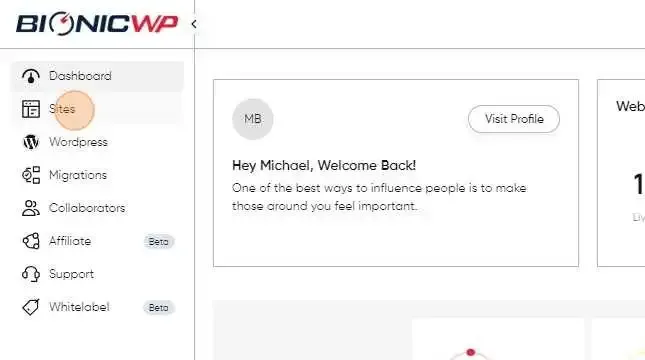
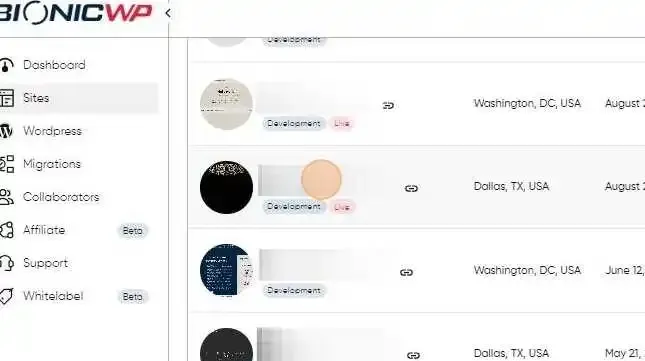
Select Your Site: Find your website in the lineup and give it a click.
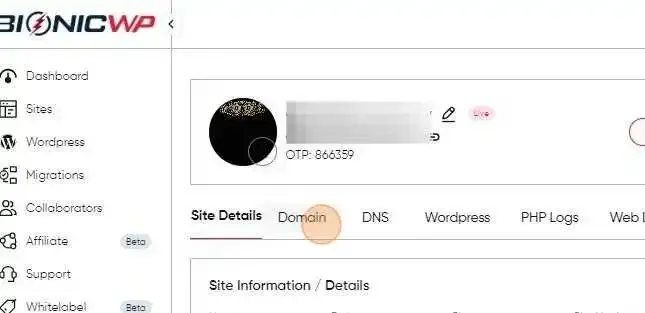
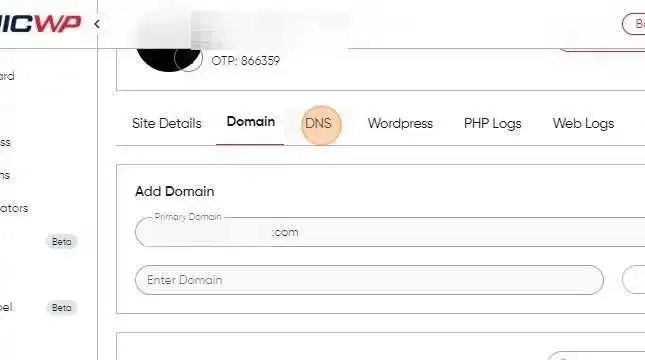
Open DNS Management: Navigate to the “Domain/DNS" management tabs – it’s your command center for all things DNS.
Playing with NameServers: Behind the Scenes
Now, let’s tinker with those crucial NameServers:
Add Your Domain:
- Introduce your primary domain under “Domain" tab
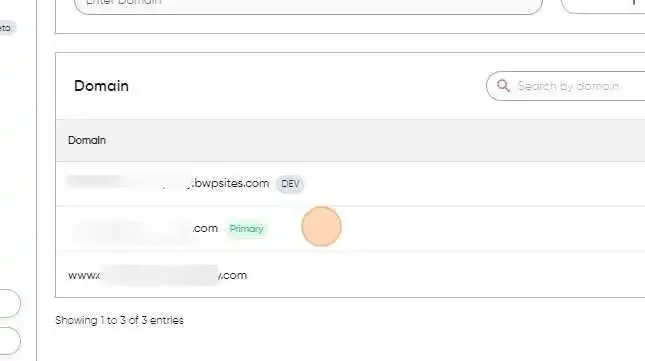
Now go to "DNS" tab to create NameServers
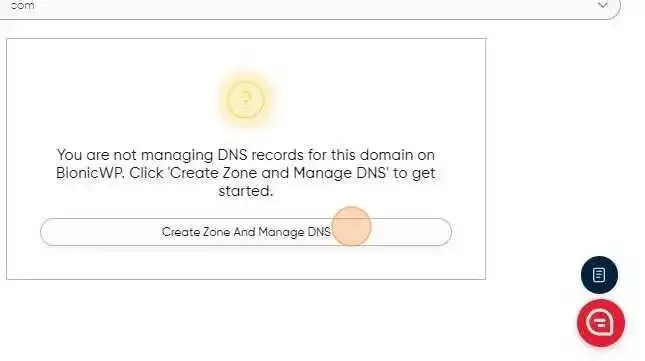
Click "Create Zone And Manage DNS"
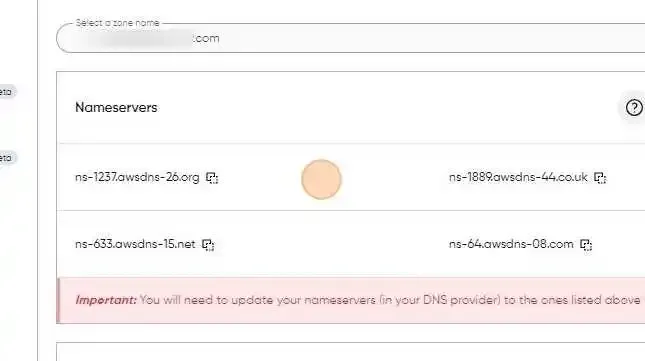
Check Out Nameservers:
- See? Your domain’s NameServers are now on the screen.
-
Add/Remove Records:
- Keep scrolling to manage records associated with those NameServers.
- Remember, the platform handles the basics ( two A records and a CNAME for WWW ); so you won’t need to add them
-
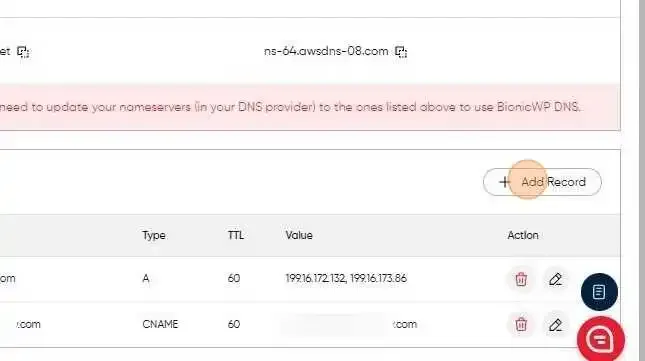
Save Your Changes: Once you’ve made your adjustments, click “Add Record” to seal the deal.
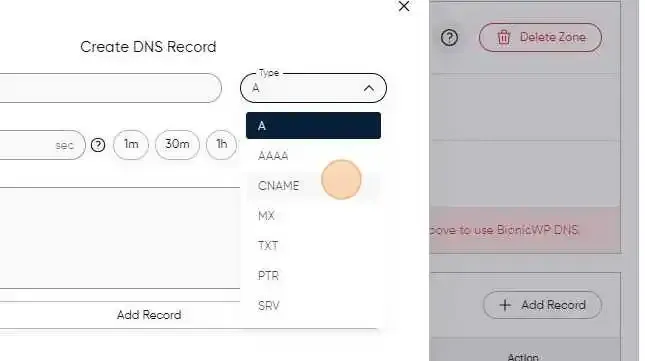
All Set! Ready to Roll
And there you have it! You’re in control of your domain’s destiny. If you ever need a hand or have questions, our support team is just a message away. Happy managing!