Adding a Domain to BionicWP Migration Sequence
Navigate to https://my.bionicwp.com/
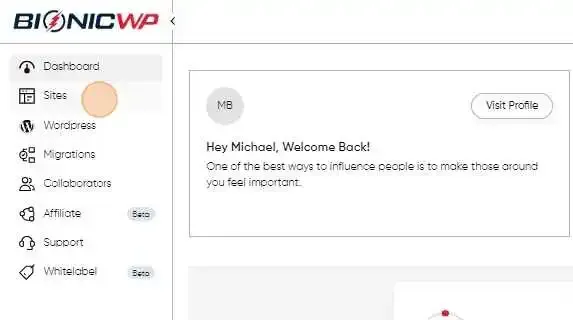
Log into your account and go to “Sites” in the left navigation.
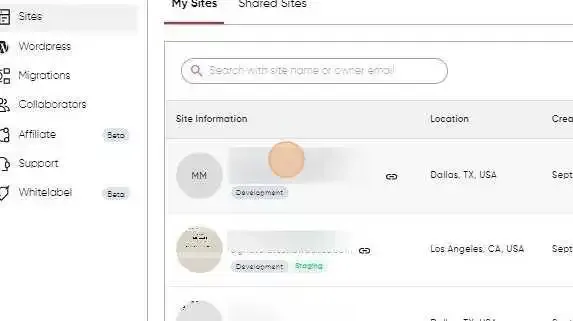
Find the site you want to take live.
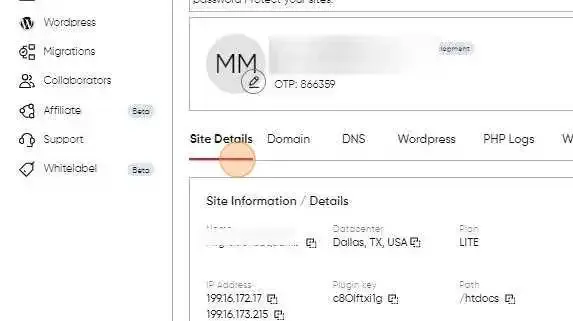
Once you’ve accessed the site dashboard, you’d be able to see the IPs to point under “Site Details”.
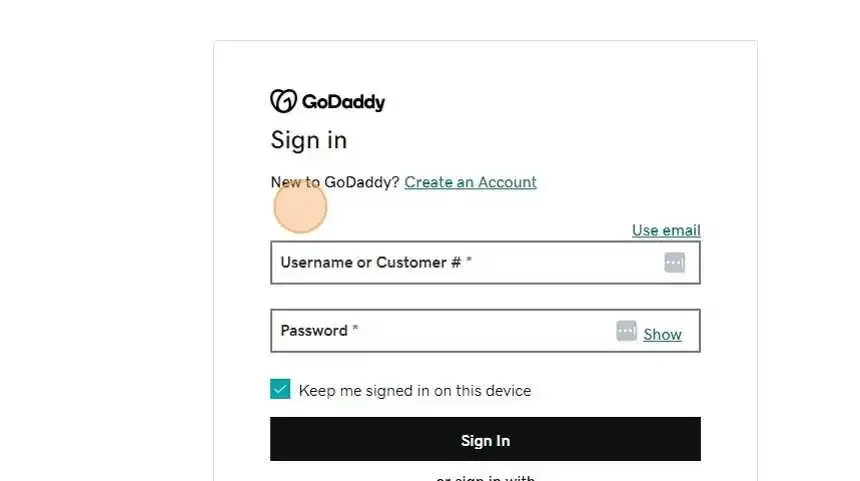
Log in to your domain registrar e.g. GoDaddy, Namecheap, Cloudflare etc.
Point the A records for both www and non-www version of the domain to the IPs listed under “Site Details”.
Next, please navigate back to MyBionic site dashboard and go to “Miscellaneous” tab.
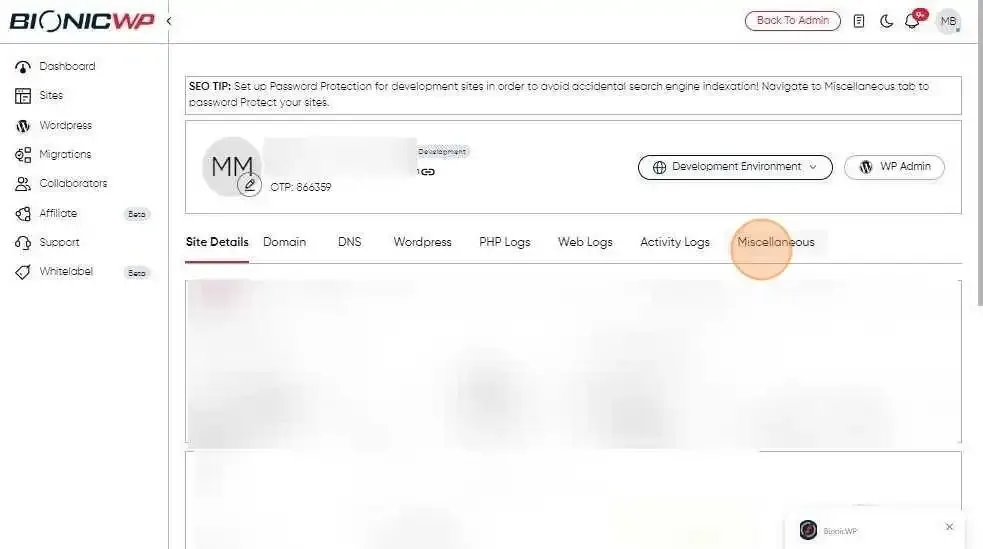
To see the “Postmark” section.
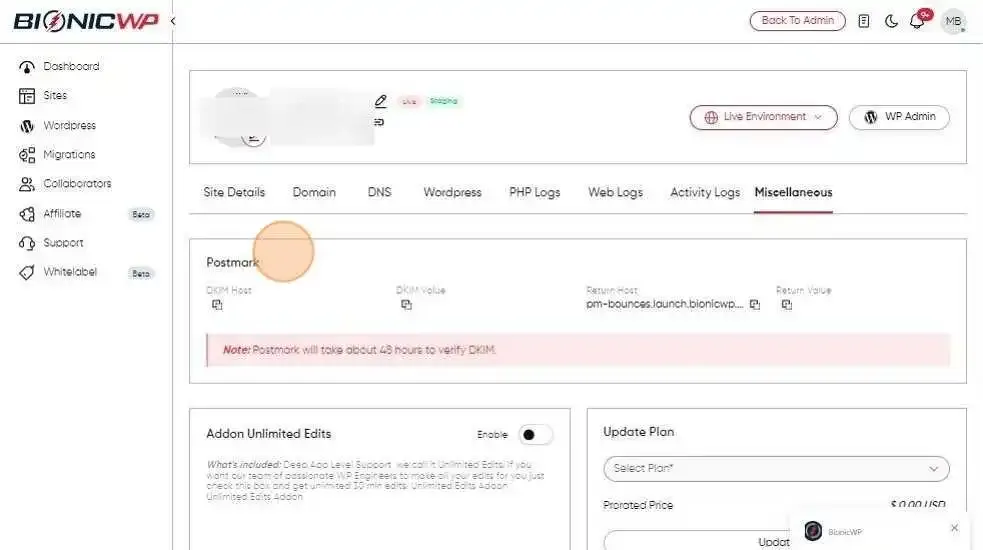
You will find 2 records to add to the DNS, 1 TXT and 1 CNAME record. You can read more about why we use Postmark and how to add Postmark records here.
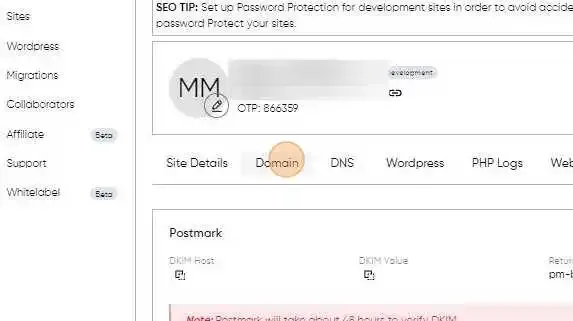
Once both IPs and Postmark records are added to the DNS, click on “Domains” from the secondary navigation.
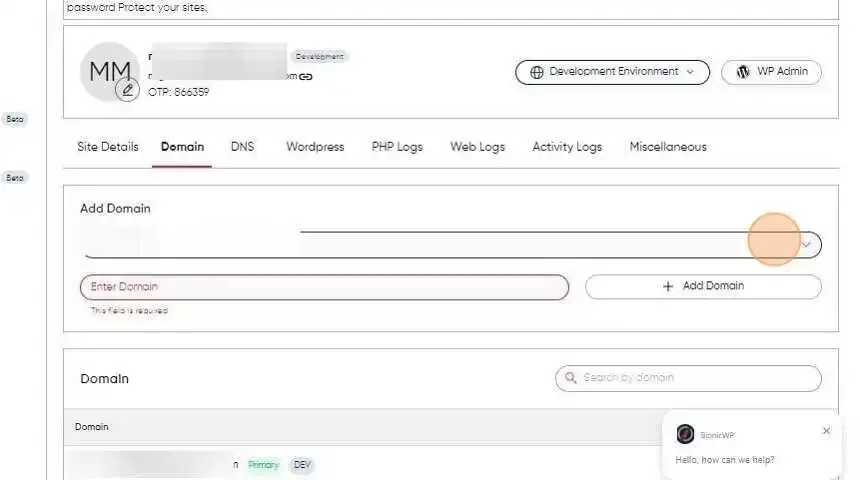
Add your domain in the text box and click “Add Domain”. You can read about how to add a Domain here.
Once the domain is added, you can select the Primary domain from domain settings.
Please make sure your DNS is propagated on both the www and non-www version.
You don’t need to install SSL. We will add it for you. Enjoy the peace of mind of a free SSL certificate from BionicWP when you launch a site.